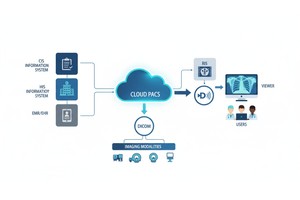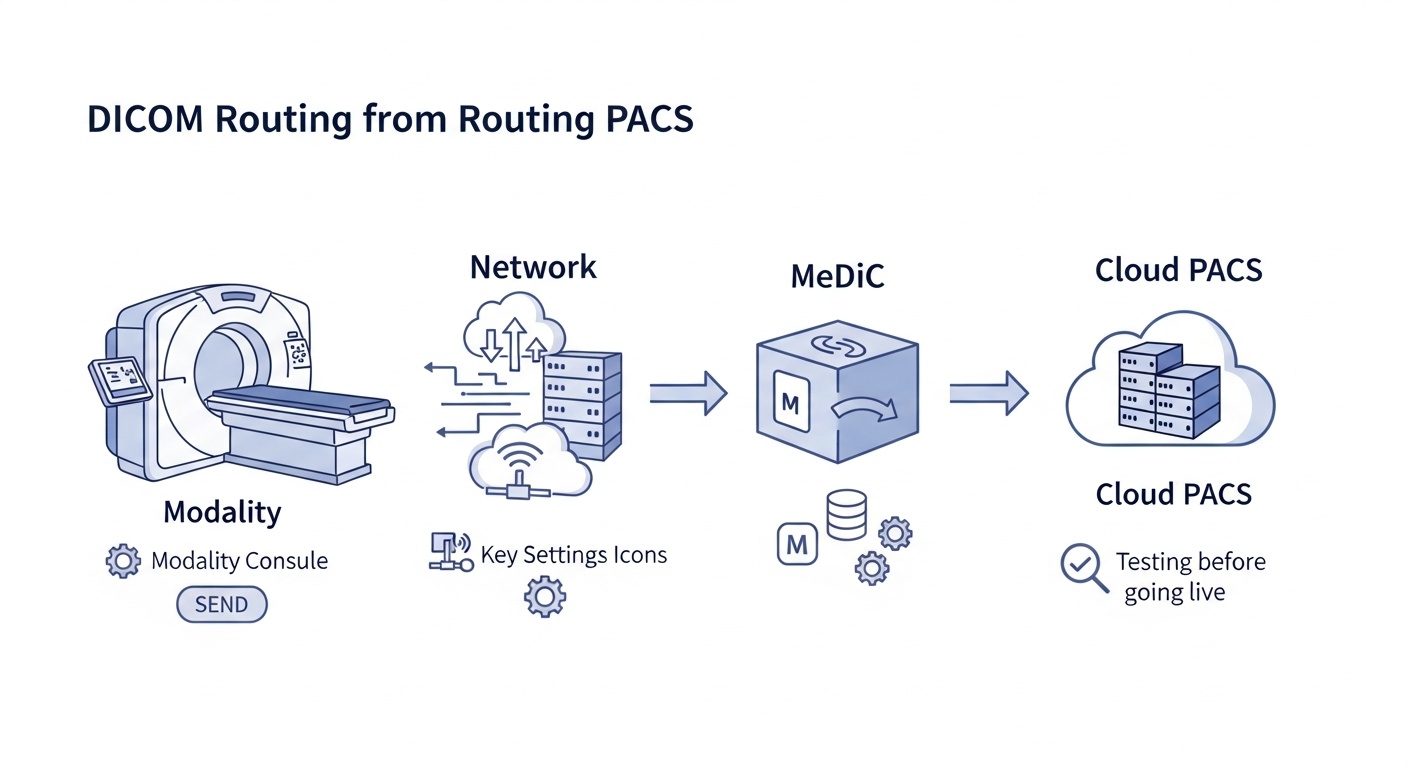
If you run a clinic, imaging center, mobile radiology service, or a small diagnostic practice, getting studies from your imaging devices into a cloud PACS should feel routine, not risky. In reality, routing can be confusing because the steps live in three different places at once: your modality console, your network, and your PACS destination settings.
This guide walks you through medical device-to-cloud PACS routing using PostDICOM and its Medical Device Communicator, MeDiC. You will learn what routing means in DICOM terms, which settings matter most, how to set up a clean and supportable configuration, and how to test before you go live. When you finish, you should be able to explain your setup clearly to your PACS vendor, your modality service engineer, and your IT provider, which will reduce downtime later.
• Routing Is Simply The Path A Study Takes From A Modality To The Pacs Destination, Using Dicom Networking Settings Such As Ae Title, Ip Address, And Port.
• Most Routing Failures Stem From Small Mismatches: a wrong AE Title, a wrong port, a blocked firewall rule, or a device not on the expected network segment.
• Medic Is Designed To Sit Within Your Clinic Network And Connect Imaging Devices To Postdicom Cloud Pacs Without Requiring A Vpn, Simplifying Many Small-business Deployments.
• Testing Before Going Live Should Include A Connectivity Check, A Real Test Study, And Confirmation That Studies Appear Correctly In The Cloud Viewer With Patient Identifiers And Series Intact.
• Security Is Not Optional. Use A Risk-based Approach, Apply Access Controls, And Ensure Secure Transport Expectations Are Understood For Dicom And Any Supporting Systems.
Routing basics involve understanding how DICOM devices find each other, authenticate at the network level, and reliably push studies. Once you understand the language, setup becomes a predictable checklist instead of trial and error.
In medical imaging, routing means configuring a device so that, upon completing a study, it can send the study to the correct destination using the DICOM protocol. The destination might be a PACS server, a gateway, or a router that forwards studies to a cloud PACS.
Think of it like this. Your modality is a DICOM application entity, and your PACS destination is another application entity. When you send images, the two sides establish a DICOM network session (an association), agree on what will be sent and how, then transfer the data. If the association cannot be established, nothing moves. If the association is established but the negotiation is wrong, you may see partial studies, missing series, or repeated send attempts.
With PostDICOM, MeDiC serves as the on-site component that enables your local devices to communicate with PostDICOM Cloud using standard DICOM operations.
These terms show up in almost every modality and PACS configuration screen. If you can read and verify these values, you can quickly resolve most routing issues.
An AE Title is the name of a DICOM application entity. It is used in the association request to identify the calling and called systems. In the DICOM standard, the calling AE Title identifies the requester, and the called AE Title identifies the intended receiver. In practical clinical terms, your modality and your destination each have their own AE Title. Both sides must agree on what those values are.
Common small business pitfall: someone types the right AE Title but adds a trailing space, uses the wrong capitalization rules for that device, or configures a destination AE Title that does not match what the receiving side expects. That single mismatch can cause instant association rejection.
The IP address is the network address your device uses to reach the destination. Inside a clinic, this is usually a private LAN IP. In cloud routing setups that use a local gateway, your modality often sends traffic to the gateway’s LAN IP rather than directly to the cloud.
This is why network placement matters. PostDICOM’s own guidance notes that MeDiC should be installed on a local area network, and the DICOM nodes must be on the same network to communicate.
The port is the TCP listening port on the receiving DICOM node. The destination device or software must be listening on that port, and any firewall between the sender and receiver must allow that port.
In many environments, port values are changed from defaults for policy or conflict reasons. The only rule that matters is consistency: the sender must target the exact port the receiver is listening on, and that port must be reachable.
A DICOM association is the negotiated connection between two application entities that allows commands and data to flow. During association establishment, the systems identify themselves using AE Titles and negotiate what they will exchange. If the receiving system cannot validate the called AE Title, or if network connectivity fails, the association will not complete.
When troubleshooting, you always want to separate association problems from transfer problems. If the association is failing, the issue is usually related to identity, IP, port, or the firewall. If the association works but the transfer fails, the issue is often transfer syntax support, storage SOP support, or resource constraints.
Routing is not a single architecture. Most clinics fall into one of these two patterns.
In this setup, the modality sends studies directly to a cloud endpoint. This can work in some environments, but it often requires more complex networking, tighter firewall changes, and careful validation of secure transport. Many small businesses find it harder to support because modality vendors may be reluctant to troubleshoot direct internet routing.
In this setup, modalities send studies to an on-site gateway, which forwards them to the cloud. MeDiC is commonly used in this role for PostDICOM deployments, installed on a computer within the clinic or hospital network and used to connect imaging devices to PostDICOM Cloud PACS. PostDICOM also notes that MeDiC works securely behind firewalls and does not require a VPN connection, which is a practical advantage for many small teams.
For most small clinics, the gateway model is easier to manage because your modalities only need to reach a local IP address and port, which is familiar territory for modality service engineers.
Before you touch any settings, gather your prerequisites. This prevents the most common scenario: half a configuration done, then waiting days for the missing value that only one person has.
First, confirm you have PostDICOM account access with permissions to create or manage MeDiC and to view incoming studies. Second, identify the computer that will run MeDiC. It should be on the same clinic network segment as the modalities that will send images. PostDICOM’s guidance emphasizes LAN placement and the use of the same network for DICOM nodes.
Third, collect the DICOM network values for each modality. You need the modality AE Title, modality IP, and the port it will use if it receives any DICOM traffic. Even if the modality is only sending, you still want a complete node record for documentation.
Fourth, collect the PostDICOM destination values you will configure in MeDiC, including the PACS settings that MeDiC uses to reach the cloud destination. PostDICOM’s knowledge base walks through editing the MeDiC PACS server settings and adding nodes with description, AE Title, IP, and port.
Finally, coordinate with whoever controls your firewall rules and network segmentation. Even in a small clinic, that could be a managed service provider, a router vendor, or a senior staff member. Decide upfront whether you want a dedicated VLAN for imaging, whether the MeDiC machine will have a static IP, and how you will document changes.
This section is the practical how-to. It follows the same order you will want during implementation, so you do not create configuration loops.
 - Created by PostDICOM.jpg)
Start inside PostDICOM by creating or selecting a MeDiC application, then download the installer for the operating system you will use. PostDICOM provides installation guidance for Windows and Linux, and notes support for common desktop operating systems.
When you install MeDiC, treat the host machine like infrastructure, not like a casual workstation. That means stable power, a wired network connection when possible, OS updates scheduled, and access limited to those who need it.
Most importantly, place it correctly on the network. PostDICOM’s documentation explicitly states that MeDiC must be on a local area network and that DICOM nodes must be on the same network to communicate.
In MeDiC, you will configure the PACS destination settings that define where MeDiC forwards studies. PostDICOM provides a step-by-step guide to editing MeDiC PACS server settings, where you ensure the cloud destination values are correct.
As you do this, document the destination values in a simple routing sheet. Include the destination name, the destination AE Title, the destination host, the destination port, and the date it was last verified. Small businesses benefit from this because it prevents the “only one person knows the settings” problem.
Next, register your modalities inside MeDiC as DICOM nodes. PostDICOM’s MeDiC guidance shows the node details that matter: description, AE Title, IP, and port, and describes adding a DICOM node so MeDiC can communicate with DICOM-compatible modalities like CT, MRI, CR, and ultrasound.
Be consistent in naming. Use a naming convention that a future technician will understand quickly, such as CT Room1, US Room2, XR Mobile, and include the device manufacturer and model in your internal documentation.
Now move to each modality console and configure a DICOM destination that points to MeDiC. This destination will use MeDiC’s AE Title, MeDiC’s LAN IP address, and the MeDiC listening port you configured.
This is where coordination with modality service engineers often matters. Many modalities store DICOM destinations in a service menu, and the engineer will want your exact values. Your job is to provide them cleanly and verify them as they enter them.
A practical note for clinics: if you have multiple modalities, do not configure them all at once. Configure one modality fully, test it end-to-end, then replicate the pattern. This limits the blast radius and speeds up troubleshooting.
Verification should happen in layers.
First, confirm basic network reachability from the modality network segment to the MeDiC host. Second, confirm that the DICOM node settings match on both sides. PostDICOM’s guidance emphasizes adding each other’s AE Title, IP, and port to communicate, which is the core of this step.
Then send a test study. Use a real but low-risk test, such as a phantom study or a designated test patient per your clinic policy. Verify all of the following in PostDICOM: the study arrives, series count matches, key images open in the viewer, and patient identifiers appear correctly according to your workflow needs. PostDICOM’s clinic solution page describes how to send images from imaging devices to MeDiC once the DICOM configuration is complete.
If your practice uses automatic send rules, review PostDICOM’s guidance on managing Auto DICOM Send Settings, because automation can be helpful, but it can also amplify mistakes if configured too early.
Testing is not just a single successful send. A safe go-live has three phases: functional testing, workflow testing, and operational readiness. Learn more about PostDICOM’s go-live checklist.
Functional testing proves the route works. That means repeated sends, not just one, and at least one larger study if your modalities produce high series counts.
Workflow testing proves the images land where your staff expects them. Confirm that radiologists and clinicians can find studies by patient name or accession, that the reporting workflow is not blocked, and that remote access behaves as your business expects.
Operational readiness is the boring part that protects you later. Create a short runbook that includes your MeDiC host details, who maintains the PC, who to call for modality issues, and what your rollback plan is if routing fails on day one. Small businesses succeed when the process is written down and not trapped in someone’s memory.
Troubleshooting DICOM routing is easiest when you work from the bottom up. Do not guess. Prove each layer, then move up.
Start with the obvious mismatches. Confirm AE Title spelling on both ends. Confirm the modality destination IP matches the MeDiC host LAN IP. Confirm the port matches the MeDiC listening port, and that it is open through any local firewall. DICOM configuration revolves around AE Titles and TCP IP ports, and the standard explicitly treats these as configured values, not magic defaults.
Next, isolate association versus transfer. If the modality cannot connect at all, you are still in association territory. If it connects but fails mid transfer, investigate transfer syntax support, storage class support, or resource limits on the MeDiC host.
Then check network placement. If a modality is on a different VLAN or if a router rule blocks lateral communication, you will see intermittent failures or a complete inability to connect. PostDICOM’s note about MeDiC and DICOM nodes being on the same network is a strong clue for diagnosing these cases.
Finally, watch for operational issues that appear to be technical failures. If the MeDiC host is sleeping, rebooting for updates, or running out of disk space, routing will fail even though the configuration is correct. Treat the MeDiC host like a small server.
Cloud PACS routing touches regulated data across many environments, so your security posture must align with your obligations. In the United States, the HIPAA Security Rule establishes standards to protect electronic protected health information and requires administrative, physical, and technical safeguards.
For small businesses, the most practical approach is to follow a recognized framework for implementation details. NIST SP 800 66 Rev 2 is specifically written to help regulated entities of all sizes implement the HIPAA Security Rule safeguards in a practical way.
On the DICOM side, secure transport is not a vague concept. DICOM Part 15 defines security and system management profiles, including TLS-based secure transport connection profiles, and references modern TLS best-practice guidance, such as IETF recommendations.
From an implementation standpoint, focus on these reliability and security disciplines.
• First, Access Control. Limit Who Can Administer Medic And Who Can Access Postdicom Accounts. Use Strong Authentication And Separate Administrative Accounts From Daily User Accounts.
• Second, Encryption In Transit. Ensure You Understand How Dicom Traffic Is Protected Between Components, And That Any Web Access To Cloud Viewers Uses Modern Tls Configurations Aligned With Best-practice Recommendations.
• Third, Auditability. In Larger Ecosystems, Profiles Like Ihe Atna Emphasize Node Authentication, Audit Logging, And Telecommunications Encryption As Foundational Elements. Even If You Are Not Implementing Full Enterprise Auditing, You Should Still Keep Logs And Know Where To Look When Something Goes Wrong.
• Fourth, Resilience. Your Clinic Should Decide What To Do When The Internet Is Down Or The Medic Host Is Offline. Do Modalities Queue Studies Locally, Do Staff Manually Resend, Or Do You Have A Backup Path? A Simple Written Policy Here Prevents Panic And Repeated Duplicate Sends.
PostDICOM states that MeDiC works securely behind firewalls and does not require a VPN connection. In practice, this can simplify deployment because your modalities send traffic to a local gateway, which handles cloud connectivity.
At minimum, you need the modality AE Title, the modality IP address, and the port configuration, plus the destination values for MeDiC. Routing failures are most often caused by mismatched AE Titles, incorrect IP addresses, or incorrect ports.
Different devices may sit on different network segments, have different firewall rules, or use different destination profiles. Confirm the failing modality can reach the MeDiC host on the correct port and that the AE Title values match exactly.
Use a designated test workflow approved by your clinic policy, such as phantom studies or a test patient record created for technical validation. The goal is to verify that studies arrive, open correctly, and preserve series integrity before you turn on routine sending.
Document each node’s AE Title, IP, and port, the MeDiC host details, the cloud destination settings, and the exact go-live date. When support tickets occur, this single page often dramatically reduces resolution time.
Setting up a medical device-to-cloud PACS routing is not difficult once you treat it as a structured system: DICOM identity, network reachability, a stable gateway, and disciplined testing. For small businesses, the biggest win is predictability. When your team can explain the routing path, verify each value, and repeat the setup for each modality, you reduce downtime and protect revenue.
If you are planning to move imaging workflows into a cloud PACS and want a clear, supportable routing setup, start a trial with PostDICOM and set up MeDiC on your clinic network. Once your first modality is sending clean test studies end-to-end, scaling to the rest of your devices becomes a repeatable process.
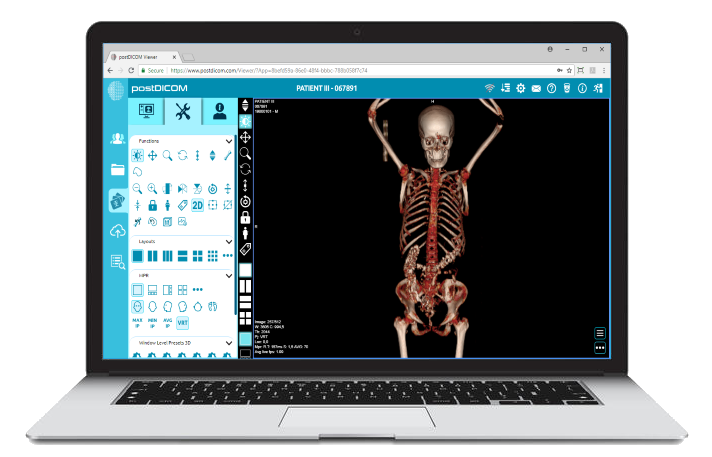
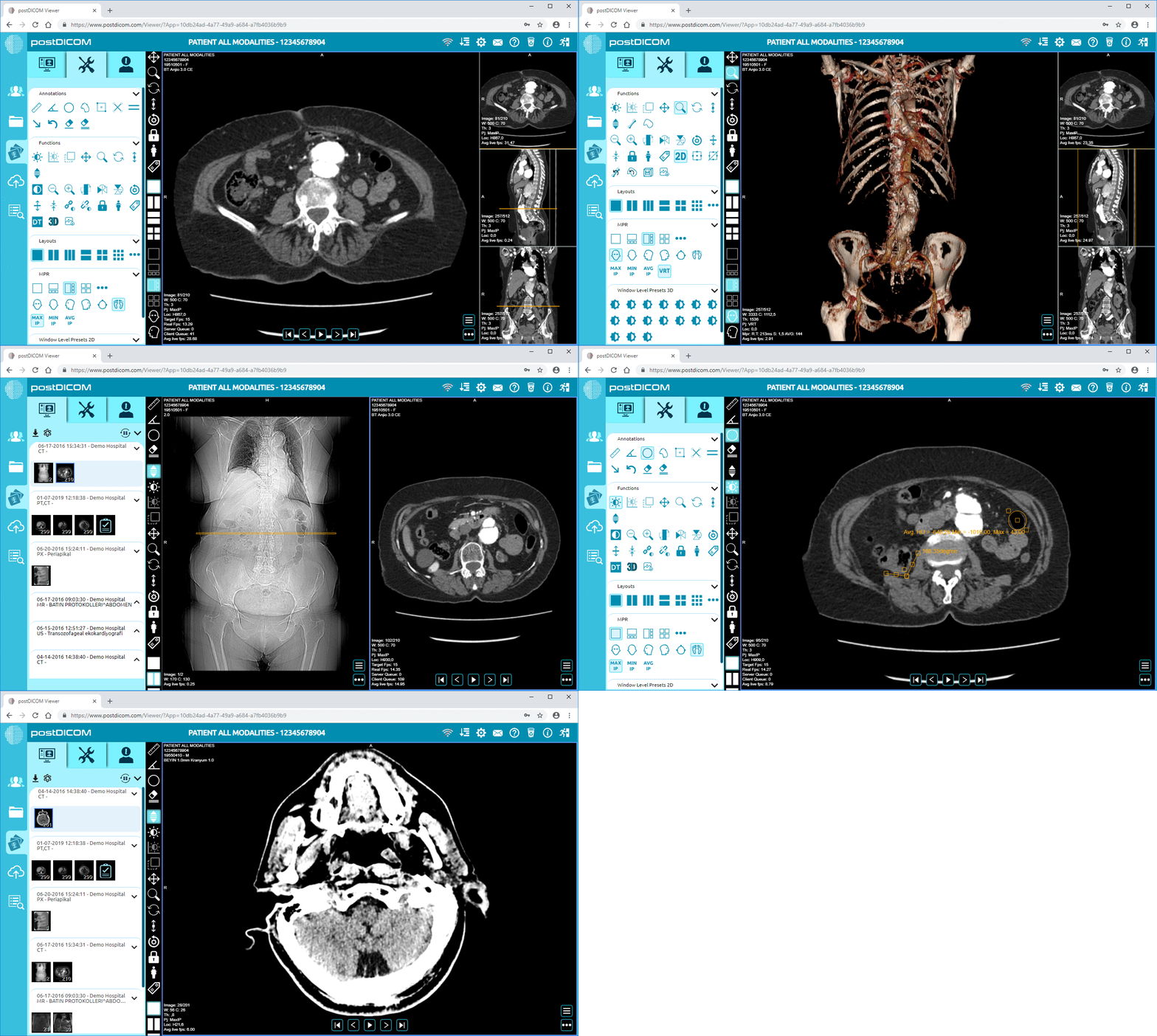
|
Cloud PACS and Online DICOM ViewerUpload DICOM images and clinical documents to PostDICOM servers. Store, view, collaborate, and share your medical imaging files. |